Installing Ziplign
Supported Operating Systems
Windows 11 (x86 only, no ARM support)
macOS (tested on sequoia 15.1)
Linux (tested on Ubuntu 20.04/x86, 22.04/x86, and 24.04/aarch64)
Download Ziplign
Go to the Ziplign release page and download the correct version for your computer:
Windows 11 -
ziplign.vX.Y.Z.windows.exemacOS -
ziplign.vX.Y.Z.mac.dmgLinux x86_64/arm64 -
ziplign.vX.Y.Z.linux.x86_64/ziplign.vX.Y.Z.linux.arm64
The actual filenames have the release number in them instead of X.Y.Z
in the above filenames.
Windows
Double-click on the downloaded file and it should just work. You may find Windows Defender popping up, in which case you will need to tell it to allow Ziplign to run.
macOS
Double-click the downloaded ziplign.mac.dmg file. It contains the app ziplign.app.
Drag or copy it into your Applications folder (or wherever you like depending on
how you organise your files).
macOS Gatekeeper will probably block it from running. If this happens, you have two options:
Go to “Privacy & Security” in the Settings app. Scroll to the bottom and Ziplign should be there for you to allow it
In a terminal, run this command:
xattr -d com.apple.quarantine -r ziplign.app.
Then Ziplign should just work. We apologise for the inconvenience, but this process is standard for apps that have not been “notarized” by Apple (which means paying an annual fee).
Linux
You may need to make the downloaded binary file executable
(ie run chmod +x). Then opening it in your file browser (or in
a terminal if you want to see logging) should just work.
First time running Ziplign
The first time you run Ziplign, it will automatically download two extra programs:
zlhelper. This is a separate command line program made for Ziplign, which handles bioinformatics tasks (the source code is here: https://github.com/martinghunt/zlhelper). Don’t worry, you won’t ever have to run it yourself - Ziplign uses it in the background.NCBI-blast+. Specifically, Ziplign gets the programs
makeblastdbandblastn. These are part of a large download containing the full blast suite of programs, which is why the download is quite large.
This might take some time, depending on your internet speed. You will see messages like:
zlhelper not found: /Users/username/Library/Application Support/ziplign/bin/zlhelper
Downloading: https://github.com/martinghunt/zlhelper/releases/download/v0.3.2/zlhelper_darwin_arm64
and:
Some blast programs not found, or version unknown. Downloading...
Running: /Users/username/Library/Application Support/Ziplign/bin/zlhelper download_binaries --outdir /Users/username/Library/Application Support/ziplign/bin
This may take some time, depending on internet bandwidth
The filenames you see will vary depending on your OS (those examples are from macOS).
Next time Ziplign runs, it will find those programs, not need to download them, and start up quickly.
Use the test data
Ziplign has built-in test data. It is a good idea to try this out to check that the installation is working correctly.
Press the “New” button. You should see the window below.
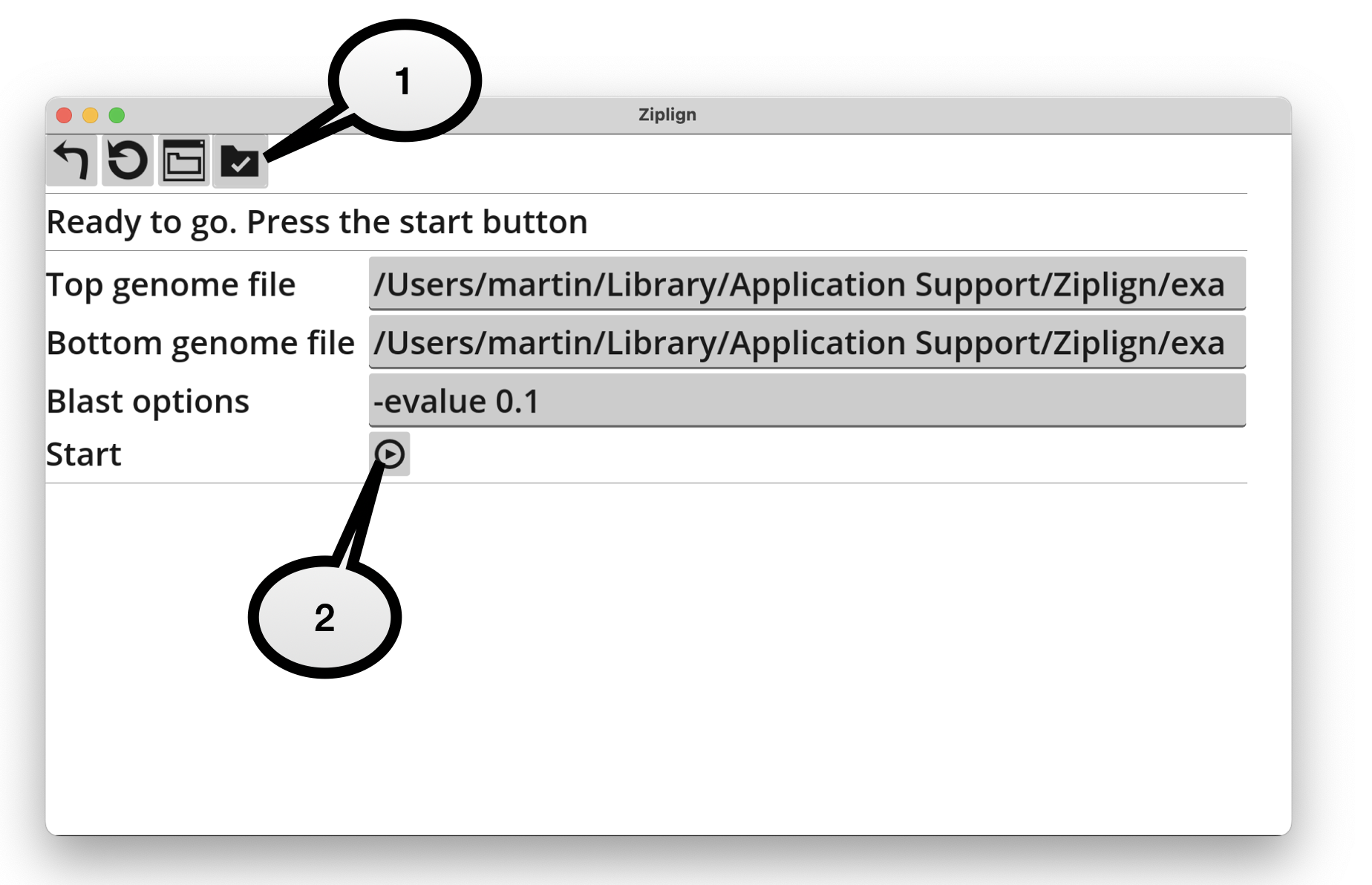
Click the “test data” icon (the rightmost icon on the top row). This will fill in the top and bottom genome filenames with the names of the test files.
Click the “start” button (at the bottom) to begin processing.
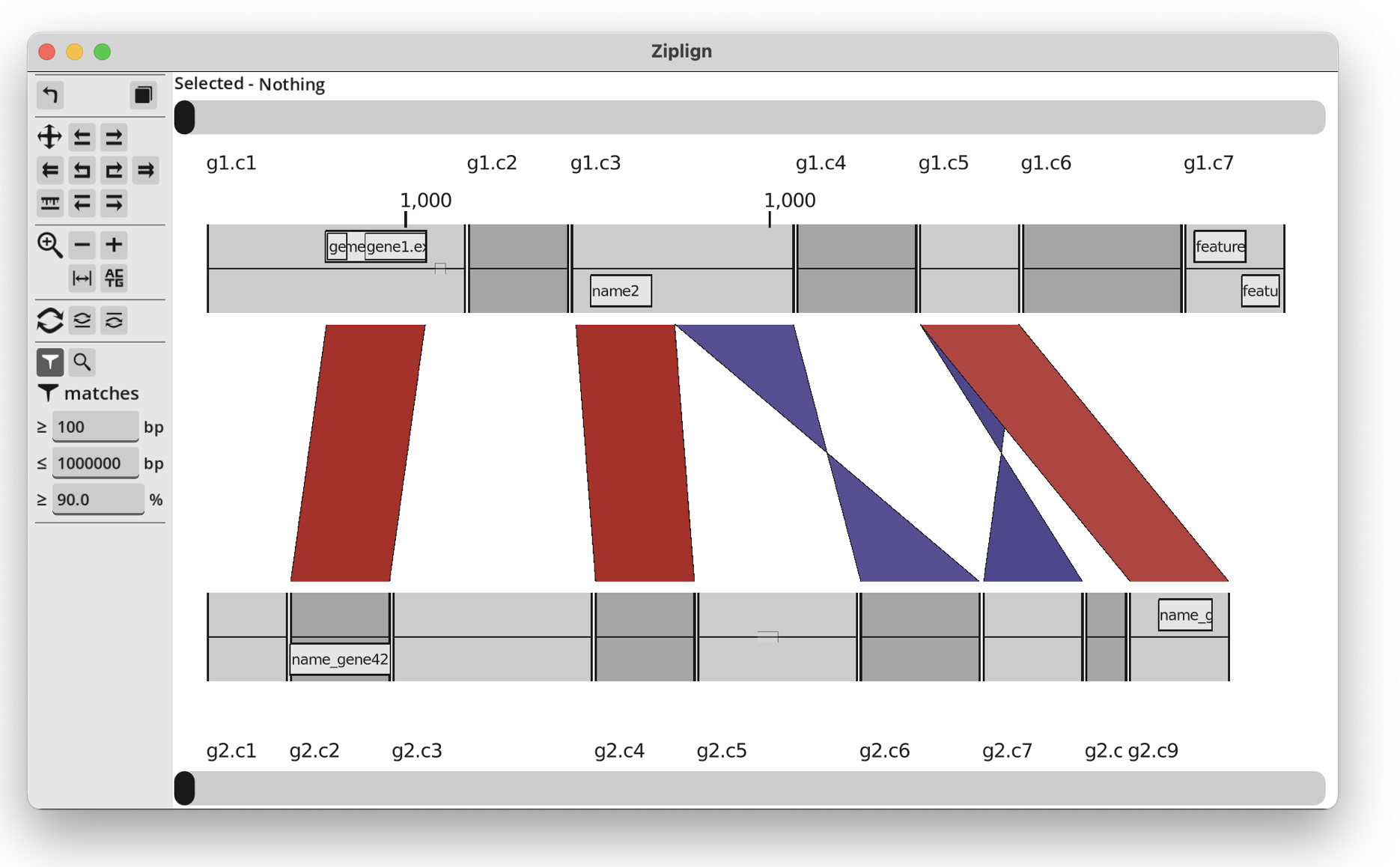
After pressing start, it will process the data. This means importing the genome files, running BLAST, and processing the output. If this all works successfully and Ziplign displays the genomes and BLAST matches, then everything is working as expected. It should look like this:
Updating Ziplign
To update Ziplign, download a new release and then replace the existing Ziplign
file with the new downloaded file. If Ziplign needs a newer version of zlhelper
or the BLAST programs, then they will be automatically downloaded when the new
version of Ziplign is started.